GyLog
For iPhone video and external cameras.
Record phone motion logs that Gyroflow can use.
For iPhone video and external cameras.
Record phone motion logs that Gyroflow can use.
Download
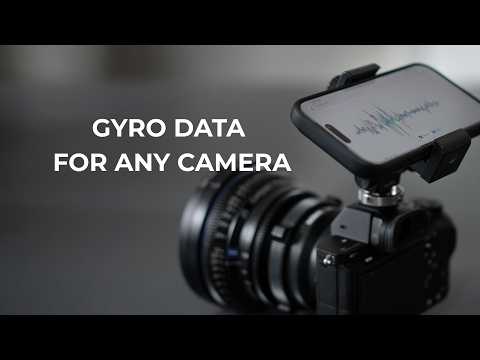
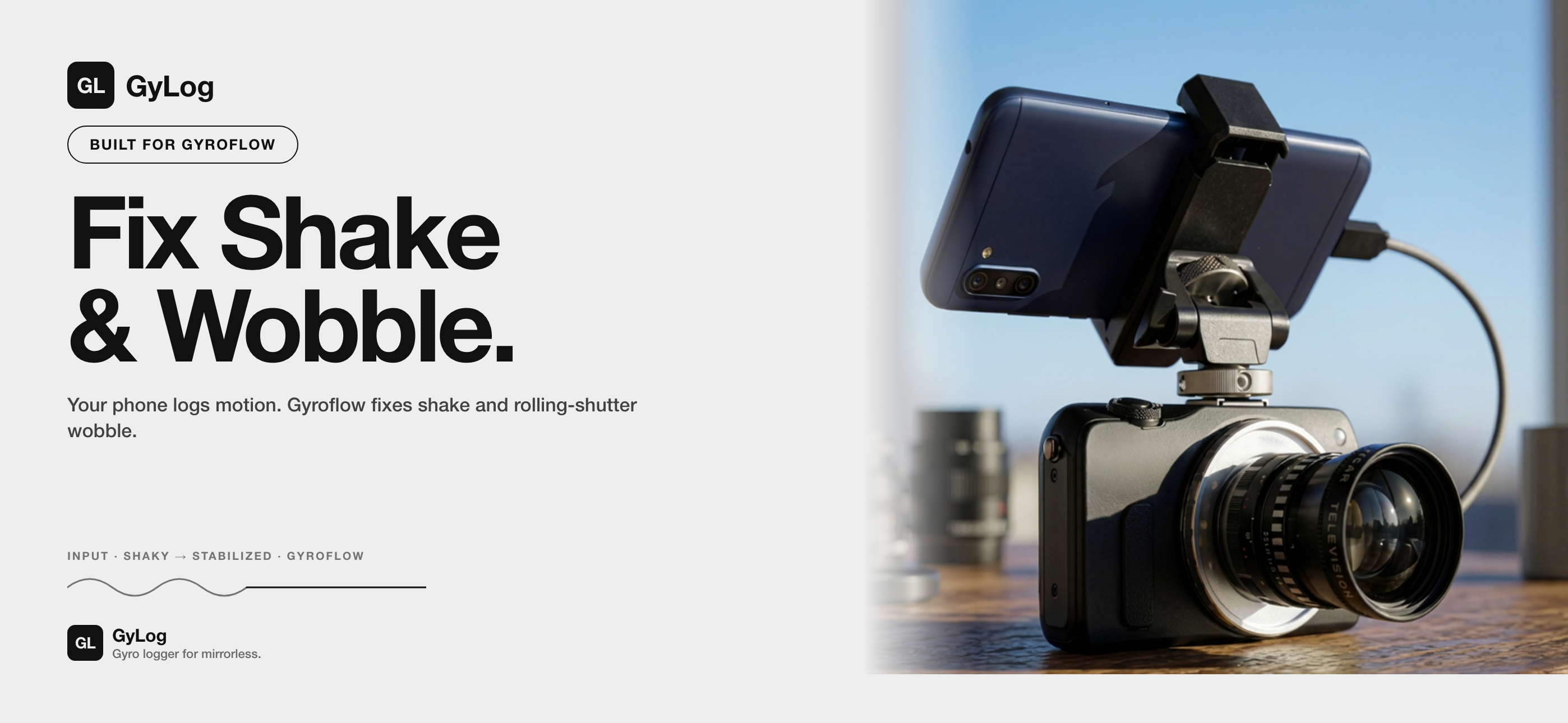
Record gyroscope and accelerometer motion while you shoot. Mount your phone to cameras that do not record gyro data, or use the same workflow with iPhone ProRes RAW and other footage you can time-sync afterward.
 Tested on iPhone 17 Pro
 Available for Android
GyLog Pro: Annual subscription with a 14-day free trial, then currently $14.99/year in the United States. Local pricing may vary by country or region and is shown in the App Store or Google Play before purchase.
Note: iOS can record an optional local reference audio track for sync; Android logs motion only. On the upside, Android makes it easy to double the same phone as an HDMI monitor for your camera via third-party apps — something iOS restricts at the OS level.
Why GyLog
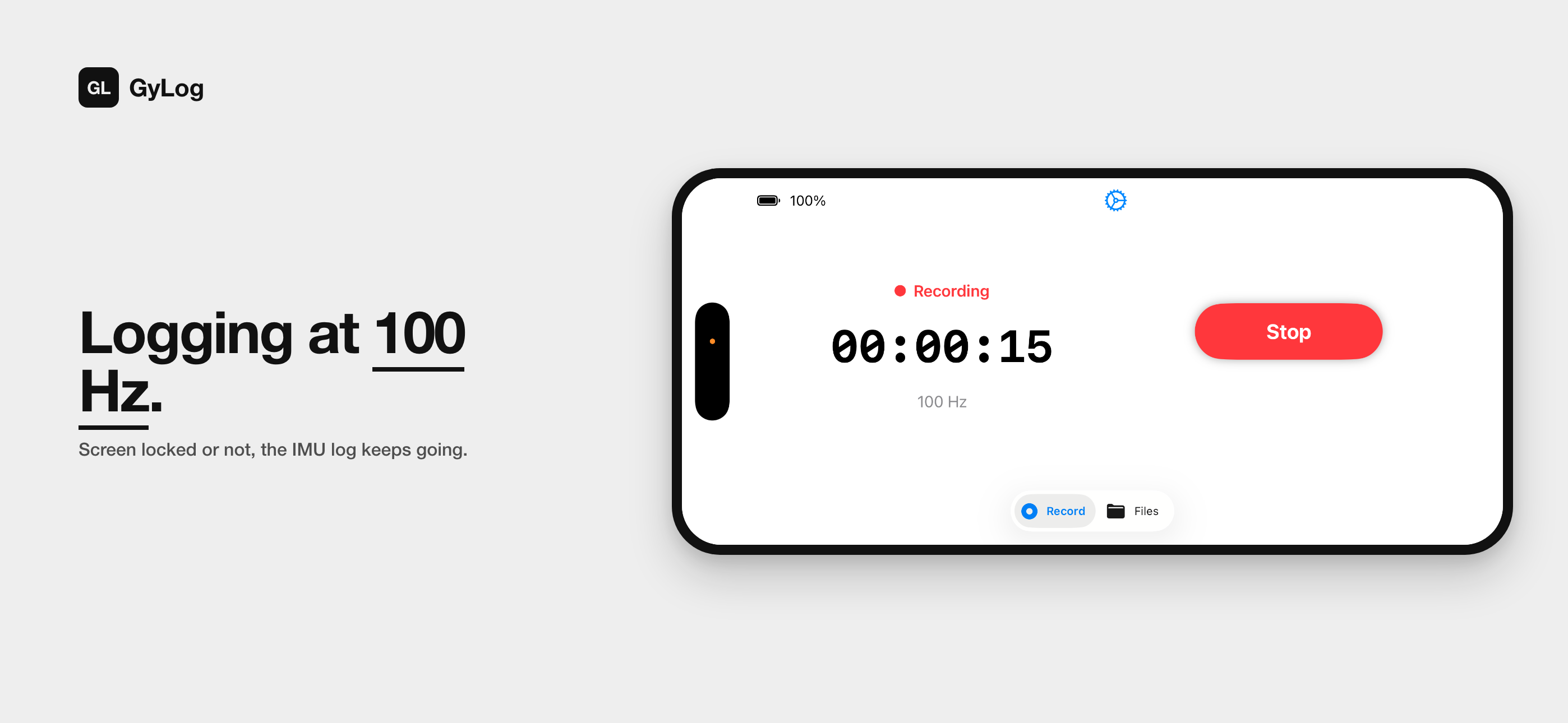
Records gyro and accelerometer data with the screen locked. One session covers every take of your shoot.
iOS can record an optional local reference audio track alongside motion data. If timestamps drift, the waveform lets you re-align with your video. Android logs motion only.
Exports standard .gcsv files for Gyroflow. Use GyLogSync to prepare per-clip logs, then fine-tune stabilization in Gyroflow Desktop or a supported editor plugin.
How It Works
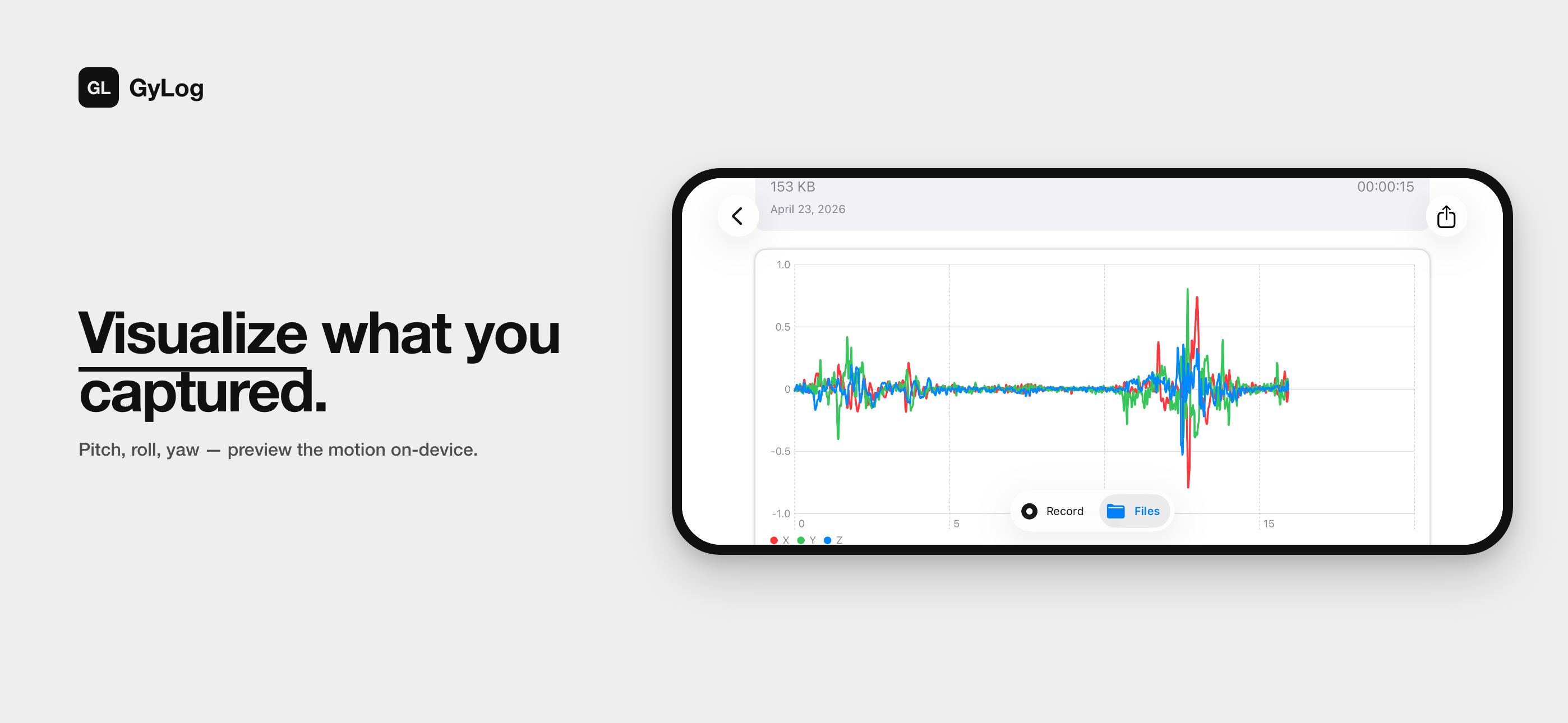
GyLog taps into your phone's built-in IMU to log pitch, roll, and yaw — plus linear acceleration — roughly a hundred times every second. No extra hardware. No cloud. All on your device.
The motion log is saved as a standard .gcsv file that Gyroflow reads natively.
App
Resources
These downloads are optional helper files for the iPhone ProRes RAW / Open Gate workflow. ProRes RAW recording requires compatible external USB-C storage. For full-resolution Open Gate work in DaVinci Resolve, use DaVinci Resolve Studio; the free version is limited to Ultra HD 3840x2160 output.
iPhone ProRes RAW PowerGrade
A simple PowerGrade for converting Apple Log / Apple Log 2 to DaVinci Wide Gamut and then Rec.709.
Download .drx → Gyroflow lens profileiPhone 17 Pro 24mm profile
The recommended lens profile for iPhone 17 Pro Fusion Main 1x, ProRes RAW Open Gate 4224x3024 60fps. 100mm and 13mm profiles are not recommended yet.
Download .json →For 100mm and 13mm, please test without a distributed profile for now. Cleaner profiles may be added later.
Complete Your Workflow
Drop your clips and .gcsv logs into GyLogSync to fix timing and create per-clip gyro logs for the standard Gyroflow Desktop workflow.
GyLogSync
Mac · Standard workflowRecommended tool for the current workflow. Fixes VFR timing, creates per-clip .gcsv files, and keeps final stabilization adjustable in Gyroflow Desktop.
Learn more →GyLogSync Direct
Mac · Beta · ExperimentalCreates .gyroflow project files directly for supported clips. If automatic sync does not look right, use the standard GyLogSync + Gyroflow Desktop workflow.
Learn more →FAQ
What cameras does GyLog work with?
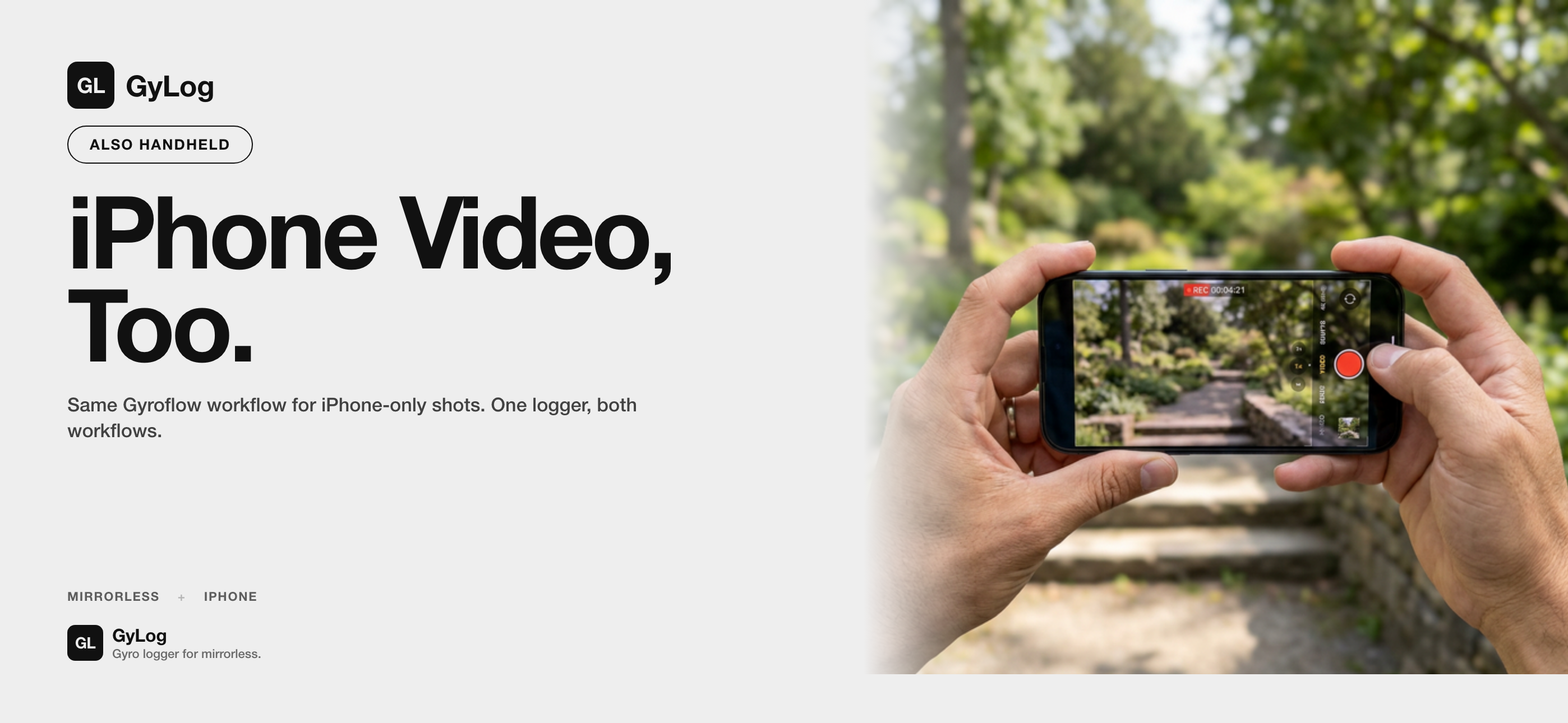
Two main ways. iPhone's own camera (standalone — the same device shoots video and runs GyLog, no external mount needed). Or most other cameras you already own — mirrorless, DSLR, and other interchangeable-lens bodies — by attaching your phone (iPhone or Android, with GyLog running) firmly to the camera so they share motion. Any secure attachment works: a shoe mount, a rig or cage, a bracket, an arm — whatever holds the phone steady against the camera body. The phone records the motion the camera experiences, and that data drives the stabilization in post. Cameras you can't attach the phone to firmly, or whose timestamps drift unpredictably, will be harder.
Is Gyroflow required?
Yes. Gyroflow is the free, open source stabilizer that uses GyLog's data. You can use Gyroflow Desktop, or a Gyroflow plugin inside supported editing software such as DaVinci Resolve and Adobe Premiere Pro / After Effects. Final Cut Pro uses Gyroflow Toolbox, a paid third-party plugin on the Mac App Store.
What does the audio recording do? iOS only
On iOS, GyLog can record an optional local reference audio track for sync. If timestamps drift between devices, the waveform lets you realign the gyro data with your video. The Android version does not record audio — it logs motion only.
I shoot ProRes RAW with Blackmagic Camera. Do I still need GyLog?
As of the April 2026 update, Blackmagic Camera stabilizes even ProRes RAW on iPhone 17 Pro and later — for most shoots that’s the simpler option. GyLog earns its spot when you want full post-production control over sync, trimming, rolling shutter, smoothness, and crop. If you do shoot with GyLog for later stabilization, set Blackmagic Camera’s Reference Source → Internal to avoid frame-timing issues that can otherwise break stabilization. (Currently tested with iPhone 17 Pro ProRes RAW.)
Can my phone double as an HDMI monitor for my mirrorless camera?
It depends on the camera. Some manufacturers (Sony, for example) offer their own monitor app for iPhone or Android, turning the phone into a wireless preview over Wi-Fi — the same phone can monitor your shot and run GyLog at the same time. For cameras without such an app, iPhone can't act as an HDMI monitor (iOS restricts external HDMI input), but it still works fine as the GyLog logger — just use a separate monitor for framing. On Android, many phones can do both at once: third-party HDMI monitor apps (over USB-C) often run alongside GyLog on the same device. We haven't tested every camera and phone combination, but it works on many.
Is my data private?
Everything stays on your device. GyLog does not upload motion data, audio, or video anywhere.
Gyroflow is a free and open source video stabilizer that reads GyLog's motion data. If you find it useful, please consider supporting the project.